Guide CSS
I woke up after a long slumber and assessed my surroundings.
Lo and
behold, CSS is pretty good now.
Chapter I Introduction
For a while now, I've been mostly writing TypeScript. I own a CMS at Bloomberg used to create interactive feature articles. WebSockets, permission systems, streaming, portable components, in-browser IDEs, etc. But what I had somewhat neglected was staying fresh on contempo CSS. It seems like I blinked for a year or two and a bunch of new stuff is now possible without JS. This page is an attempt to learn these features (mostly for myself, but maybe useful to others) by implementing an article walking through some of them.
This is an attempt at that kitchen-sink article.
Chapter II Cascade layers and nesting
Layers
To kick things off, we want to keep things tidy and clean, and not have to worry much about the specificity of CSS selectors. Which is quite doable now with native CSS cascade layers. The stylesheet starts by declaring five Cascade layer A named group of styles. Rules in a later layer win over rules in an earlier one, regardless of selector specificity. and their order. I was already familiar with layers, but hadn't really been using them. The gist is that rules in a later layer override rules in an earlier one, so, for example, a component’s styles override the reset without needing a more specific selector. This is wildly useful in practice, as you can write more loosely scoped components inside a layer without fear of selectors clashing. Specificity How the browser ranks competing selectors: IDs over classes, classes over element names. Layers are compared first. only decides between rules in the same layer.
Here is an example:
Styles that aren’t in any layer override all layered styles.@layer reset, base, layout, components, utilities;
@import "styles/reset.css";
@import "styles/base.css";
@import "components/carousel/carousel.css";
/* Inside each file, rules join a layer by name */
@layer components {
.carousel { display: flex; }
}Nesting
Also, for good measure, all the stylesheets in this article use native CSS nesting CSF. Hover states, child rules and media queries are written inside the rule they apply to, using & to refer to the parent selector. This is like the entire reason I used Sass for years (later, PostCSS). Browsers parse this directly now, so there’s no need for a preprocessor. It's really a huge win.
/* contrived example... */
@layer components {
  .carousel {
    display: flex;
    .carousel--item {
      width: 100%;
      figcaption {
        font-size: 8px;
        &::after {
          content: '*';
        }
        &:hover {
          color: red;
        }
      }
    }
  }
}
Chapter III Typography
The drop cap at the start of this paragraph uses initial-letter: 3 CSF, which sizes the letter to span three lines and aligns it to them. (Browsers without support still need a float, natch).
Headings use text-box: trim-both cap alphabetic CSF to remove the space the font reserves above capital letters and below the baseline, so margins around headings match the values in the CSS. Headings use text-wrap: balance CSF to even out line lengths, and paragraphs use text-wrap: pretty CSF to avoid a single word on the last line.
Some smaller details: hanging-punctuation CSF moves opening quotation marks outside the text edge (currently Safari only). Vertical spacing uses lh and rlh CSF, units equal to one line height, so spacing between blocks follows the line spacing of the text.
Fluid type
Font sizes scale continuously with the viewport instead of stepping at breakpoints. I mean, you don't have to do this, but you can now. The page defines a custom CSS function, --fluid(), that takes a minimum and maximum size and returns a clamp() between them. Custom functions (@function CSF) are somewhat new, so for each use, I make sure to precede it with a plain ol' clamp() declaration. Browsers that don’t support @function drop the second declaration and use the first. The page uses this two-declaration fallback pattern in many places.
@function --fluid(--min <number>, --max <number>) returns <length> {
  result: clamp(
    calc(var(--min) * 1rem),
    calc(
      (var(--min) - (var(--max) - var(--min)) * 0.4) * 1rem +
        (var(--max) - var(--min)) * 1.6vi
    ),
    calc(var(--max) * 1rem)
  );
}

body {
  font-size: clamp(1.125rem, 1.025rem + 0.4vi, 1.375rem);
  font-size: --fluid(1.125, 1.375);
}Chapter IV Grid, subgrid and floats
Now the layout. Every element on this page sits in one grid. In many cases, this works well. But it doesn't work super well if your CMS spits out media that needs to make heavy use of floats and rails. More on that later... I'm going with a grid for this article. Instead of doing like a 12-col thing, I'm using grid-template-columns with named grid lines. This way, the HTML only says which column something belongs in, such as main or wide, and the CSS decides where that column is at each screen width. This chapter shows how the page’s template is built, then lets you try your own.
The page layout is a single grid with five named areas. Each element is placed by name instead of by column number:
fullruns edge to edge, like the parallax photo.widecovers the text and the rail plus some space on either side. The photo grid and the code blocks use it.mainis the reading column for body text.railis a narrow column beside the text for notes and captions. The sidenotes in Chapter III sit in it.navis the narrow column on the far left that holds the chapter list. Only the page’snavelement goes in it.
Each chapter passes the same columns down to its children with subgrid CSF, so nested elements still line up with the page grid. The diagram below is a subgrid too, so it shows the page’s real columns at the current window size.
I find the named grid column syntax a bit gross, and am still getting the hang of it. Here's an example:
.page {
  display: grid;
  grid-template-columns:
    [full-start nav-start] var(--nav-width)
    [nav-end wide-start] 1fr
    calc(var(--gutter) + var(--rail))
    [main-start] minmax(0, var(--measure))
    [main-end] var(--gutter)
    [rail-start] var(--rail)
    [rail-end] 1fr
    [wide-end] var(--nav-width)
    [full-end];
}

nav { grid-column: nav; }

.chapter {
  display: grid;
  grid-template-columns: subgrid;
}

.chapter > * { grid-column: main; }
.chapter > .wide { grid-column: wide; }
.chapter > .full { grid-column: full; }
.chapter > .rail { grid-column: rail; }

/* No room for a rail: it shares main's lines, so rail items stack under the text */
@media (width < 72rem) {
  .page {
    grid-template-columns:
      [full-start nav-start] var(--nav-width)
      [nav-end wide-start] 1fr
      [main-start rail-start] minmax(0, var(--measure))
      [main-end rail-end] 1fr
      [wide-end] var(--nav-width)
      [full-end];
  }
}rail-start and rail-end defines an area you can refer to as rail. See named grid lines.A few things that took me a minute to get:
- The areas nest.
widestarts on the line beforemainand ends on the line afterrail, so anything wide covers both.fullcovers everything. mainstays centered because the unnamed track before it is exactly as wide as the gutter plus the rail after it. The rail just hangs off the right edge. On the left, an empty last track the same width as the nav evens things out.- A rail item lands in the same row as whatever comes right before it, since the grid drops it into the next free cell to the right. So put the note straight after its paragraph in the HTML.
- Going responsive only means renaming lines. Below 72rem, the media query puts
rail-startandmain-starton the same line. No element needs a new rule, and the rail content just drops under the text.
Try it out
I slightly lied, as this component has a little JS, but it's only for educational purposes. Type any value for grid-template-columns below, or start from a preset. The first is this page’s own grid, with its custom properties written out as values. The preview is a real grid, so it shows the widths the browser works out for each track at the current window size. Name a pair of lines name-start and name-end and the CSS includes a rule to place children in that area.
140px
1fr
calc(2rem + 11rem)
minmax(0, 40rem)
2rem
11rem
1fr
140px
              .grid {
                display: grid;
                grid-template-columns:
                  [full-start nav-start] 140px
                  [nav-end wide-start] 1fr calc(2rem + 11rem)
                  [main-start] minmax(0, 40rem)
                  [main-end] 2rem
                  [rail-start] 11rem
                  [rail-end] 1fr
                  [wide-end] 140px
                  [full-end];
                column-gap: 0;

                > .full { grid-column: full; }
                > .nav { grid-column: nav; }
                > .wide { grid-column: wide; }
                > .main { grid-column: main; }
                > .rail { grid-column: rail; }
              }
Dealing with floats
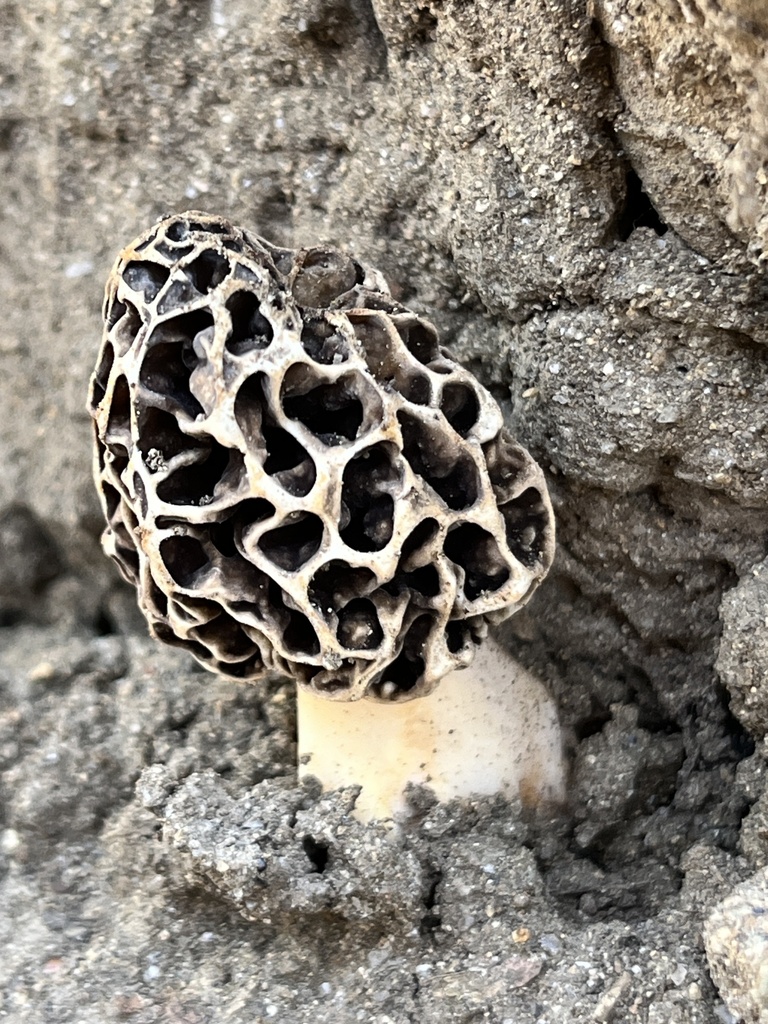
The grid decides where each block goes, but inside a block, text still flows the old way, so a photo can float in the reading column with the text running around it, with the caveat that the floated content must be wrapped in a parent! This means CMSes that spit out an array of stacked items need special handling to wrap in a shared div when items must be floated.
Anyway, the photo above uses float: inline-start CSF, which means the start of the line: left in English, right in a right-to-left language. A circular clip-path crops it, and shape-outside: circle() CSF makes the text follow the same circle instead of the photo’s square box. I always have to look this up. shape-margin keeps a clear band around the curve. The wrapper is display: flow-root, so the float stays inside it even when the text beside it is short, and a container query stops the float when the column is too narrow for text on both sides.
American yellow morel, Morchella americana. Photograph: jsingleton20 / iNaturalist
.wrap {
  display: flow-root; /* holds the float */
  container-type: inline-size;
}

/* The wrapper is the grid item, so the photo can float inside it */
.wrap__photo {
  float: left; /* fallback */
  float: inline-start;
  inline-size: 40%;
  aspect-ratio: 1;
  object-fit: cover;
  clip-path: circle(50%);
  shape-outside: circle(50%) border-box;
  shape-margin: 1.25rem;
  margin-inline-end: 1.25rem;
}

@container (width < 24rem) {
  .wrap__photo { float: none; margin-inline: auto; }
}shape-margin.Chapter V Color and theming
The Aa menu near the top of the page switches between light, dark and sepia themes. The stylesheet has no separate set of dark-mode colors. Every color on the page is derived from two base values, --paper and --ink.
Both are defined with light-dark() CSF, which takes a light-mode color and a dark-mode color and uses whichever matches the current color-scheme. Colors are written in OKLCH CSF (lightness, chroma, hue). Equal steps in OKLCH lightness look like equal steps to the eye, which isn’t true of hex or RGB values. At least, that's something I learned recently, but I still have to convert the colors from hex or rgba, because oklch is a bit obtuse to look at (for me).
:root {
  color-scheme: light dark;

  /* The two base colors */
  --paper: light-dark(oklch(98.2% 0.006 85), oklch(17.5% 0.006 70));
  --ink: light-dark(oklch(21% 0.012 70), oklch(91% 0.012 85));

  /* Everything else is derived from them */
  --muted: color-mix(in oklch, var(--ink) 60%, var(--paper));
  --rule: color-mix(in oklch, var(--ink) 13%, var(--paper));
  --accent-wash: light-dark(
    oklch(from var(--paper) calc(l - 0.06) c h),
    oklch(from var(--paper) calc(l + 0.08) c h)
  );
}Secondary text uses color-mix() to blend 60% ink into the paper color. Rules use 13%. These numbers I picked because they looked pretty good. The text-selection highlight uses relative color syntax, oklch(from var(--paper) calc(l - 0.06) c h), which takes the paper color, reads its lightness, chroma and hue, and lowers the lightness by 0.06. The sepia theme only redefines --paper and --ink, and the rest of the palette updates on its own.
– Bruce HaackEarth is cool. Fire's warm. Root is down. Below the storm. Good time coming. Beat is slow. Inhibition. Let it grow.
@scope CSF, and sized in
cqi CSF
units relative to the quote’s own width
The theme menu is a standard <select>. The root element checks its state with :has() CSF: :root:has(option[value="dark"]:checked) matches when the dark option is selected, and sets color-scheme: dark. Every light-dark() value on the page then switches to its dark color. The text-size menu works the same way, changing the root font-size. All sizes on the page are in rem, so everything scales with it.
:root:has(select[name="theme"] option[value="dark"]:checked) {
  color-scheme: dark; /* every light-dark() value now uses its dark color */
}

/* The text-size menu works the same way */
:root:has(select[name="size"] option[value="l"]:checked) {
  font-size: 112.5%; /* 1rem becomes 18px, and everything sized in rem grows with it */
}<select name="theme"> and <select name="size"> elements in the Aa popover. Choosing an option checks it, and the selector on the root matches. No script reads the value.The menus are styled with appearance: base-select CSF, which allows a native select to be fully styled: the button, the dropdown (::picker(select)), the arrow (::picker-icon) and the selected-option tick (::checkmark). The select keeps its built-in keyboard and screen-reader support.
Also, options aren’t limited to plain text anymore! Here each one holds a color chip, and the box re-themes itself from whichever one is picked, with the same :has() trick as the theme menu.
--paper--tint--rule--muted--ink
<selectedcontent> copies the chosen one into the button.
Picking one sets --paper and --ink on this box
with :has(), and the three colors between them are mixed from
those two.
Hrmmm, a few other color features are in use too... The chapter bars in the left margin are white with mix-blend-mode: difference CSF, which makes them dark on a light background and light on a dark one. Tooltip text uses contrast-color() CSF, which returns black or white, whichever contrasts more with the background. @media (prefers-contrast: more) CSF darkens secondary text and rules for readers who have requested higher contrast. ::target-text CSF styles the passage a text-fragment link (#:~:text=…) points to.
Chapter VI Scroll effects
Scroll effects used to require JavaScript, which was really easy to screw up. A scroll listener that recalculated styles on every frame could wreck page performance. Intersection Observer helped quite a bit (and still does actually), but scroll-driven animations CSF let CSS link an animation to scroll position instead. You write normal @keyframes, then set animation-timeline. Instead of running over a number of seconds, the animation progresses as the page scrolls. There are two kinds of timeline. A scroll timeline follows the scroll position of a container. A view timeline follows an element’s position as it moves through the viewport.
The progress bar at the top of the screen is the simplest example. It is a 2px-tall element with scale: 0 1 as its starting keyframe and animation-timeline: scroll(root). The animation is at 0% at the top of the page and 100% at the bottom.
Here is the code:
@keyframes progress-grow {
  from {
    scale: 0 1;
  }
}

.progress {
  position: fixed;
  inset: 0 0 auto;
  height: 2px;
  background: var(--accent);
  transform-origin: left center;
  scale: 0 1; /* hidden in browsers without scroll timelines */
}

@supports (animation-timeline: scroll()) {
  .progress {
    scale: 1 1;
    animation: progress-grow linear both;
    animation-timeline: scroll(root);
  }
}scale: 1 1. animation-timeline comes after the animation shorthand, because the shorthand resets it.The header
The header animation combines several features. The header element is 300vh tall, and its contents sit in a 100vh box with position: sticky; top: 0. So the header stays put for two screens' worth of scrolling, and the animations play during that time.
The header declares a named view timeline, view-timeline-name: --header-scroll CSF, and its children use it with animation-timeline: --header-scroll. Each animation is limited to part of the timeline with animation-range CSF. The contain range covers the period during which the header fills the viewport, which is exactly the time the sticky box is pinned.
At the time of writing, Firefox doesn't support these scroll animations, so it (and any other browser without them) just gets the finished header at 100vh, for the committed fanbase.
header {
  height: 300vh;
  view-timeline-name: --header-scroll;
}

.header__inner {
  position: sticky;
  top: 0;
  height: 100vh;
}

/* Only a "from" keyframe: each copy animates to its own transform */
@keyframes scatter {
  from { transform: none; }
}

.mirror {
  --i: calc(sibling-index() - 1);
  --rev: calc(sibling-count() - sibling-index());

  position: absolute;
  inset: 0;
  z-index: var(--rev);
  transform: scale(pow(0.85, var(--i))) rotate(calc(var(--i) * 20deg));

  animation: scatter ease-in-out both;
  animation-timeline: --header-scroll;
  animation-range: contain calc(var(--rev) * 3%)
    contain calc(40% + var(--rev) * 3%);
}

.mirror img {
  mask-image: radial-gradient(closest-side, transparent 40%, black 100%);
}The image is repeated in twelve .mirror elements stacked on top of each other. Each copy has a resting transform that scales it by pow(0.85, i) CSF and rotates it by i × 20deg, where i is its position in the stack. The scatter keyframes only define a from state of transform: none. When a keyframe is missing, the animation uses the element’s own value, so each copy animates from untransformed to its resting transform. At the top of the page all twelve copies are untransformed and exactly overlap, so they look like one image. As you scroll, each one shrinks and rotates into place, forming the tunnel.
Each copy gets i from sibling-index() CSF, so the HTML needs no numbered classes. sibling-count() - sibling-index() gives the reverse order, which is used for z-index (larger copies on top) and to stagger the animations. The innermost copy starts first, and each larger copy starts 3% of the timeline later. Each image has a mask-image CSF radial gradient that is transparent in the center, so the smaller copies underneath show through. The last copy has no mask.
The title uses the same timeline. Its keyframes start at transform: translateY(100vh), below the visible area, and its range is contain 80% contain 100%, so it moves into place during the last fifth of the pinned scroll.
Animating numbers
663
As you may have noticed, the contrived number above counts up when it scrolls into view. CSS can’t normally animate a custom property, because it treats the value as an untyped string. Registering the property with @property CSF as an <integer> gives it a type the browser can interpolate, from 0 to 663. The target value comes from the HTML: attr() CSF with a type reads data-value="663" as an integer. A CSS counter displays the current value.
@property --num {
  syntax: "<integer>";
  inherits: false;
  initial-value: 0;
}

@keyframes count-up {
  from { --num: 0; }
  to { --num: var(--to); }
}

.stat__num {
  --to: attr(data-value type(<integer>), 0);
  counter-reset: n var(--num);
  animation: count-up cubic-bezier(0.1, 0.6, 0.2, 1) both;
  animation-timeline: view();
  animation-range: entry 40% cover 50%;

  &::after {
    /* counter(n) prints the current --num as text, since content can't show a number directly.
       "/" starts the alt text: "" is empty, so screen readers skip the ticking digits */
    content: counter(n) / "";
  }
}
/ "" gives the generated digits empty alternative text. Screen readers read the static number in the HTML instead, which is visually hidden.Here's another one: each bar’s width comes from its data-value attribute, read with typed attr(). The bars start growing one after another because each bar offsets its animation-range by its sibling-index(). The list is a three-column grid, and each row uses grid-template-columns: subgrid, so the label and value columns line up across all rows.
The chapter nav
If you're lucky enough to be on a desktop, you will notice the bars in the left margin show progress through each chapter. Each chapter declares its own view timeline. The nav isn’t an ancestor of the chapters, so it can’t normally see those timelines. But now it can! timeline-scope CSF on the page wrapper makes them available to all of its descendants. The nav stays hidden until it sticks to the top of the viewport, using a scroll-state(stuck: top) CSF container query.
/* Each chapter names its own view timeline, and the page wrapper shares them */
.chapter:nth-of-type(1) {
  view-timeline-name: --ch-1;
}
/* …and so on for each chapter */

.page {
  timeline-scope: --ch-1, --ch-2, --ch-3; /* … */
}

/* The bar's fill is a typed percentage, so it can animate */
@property --read {
  syntax: "<percentage>";
  inherits: false;
  initial-value: 0%;
}

@keyframes read {
  to {
    --read: 100%;
  }
}

nav a::before {
  background: linear-gradient(to right, currentColor var(--read), transparent 0);
  animation: read linear both;
  animation-range: contain 0% contain 100%;
}

nav li:nth-child(1) a::before {
  animation-timeline: --ch-1;
}

/* Hidden until it sticks to the top */
nav {
  position: sticky;
  top: 0;
  container-type: scroll-state;
}

@container scroll-state(stuck: top) {
  nav ol {
    opacity: 1;
  }
}page.css and nav.css. The real nav repeats the animation-timeline rule for every chapter, and starts its list at opacity: 0.The bar for the chapter you’re reading turns blue, and that needs no script either. scroll-target-group: auto CSF turns the nav into a group of scroll markers: every link whose href points to an element on the page tracks that element. This is literally like two lines of CSS now. As you scroll, the browser picks the link whose target is currently in view, and :target-current CSF matches it. Previously, you had to make a scroll spy with an IntersectionObserver for this, toggling a class from JavaScript. Damn.
nav {
  scroll-target-group: auto;
}

nav a:target-current {
  opacity: 1;
}href="#grid"), which is all the browser needs to know which one is current.The top bar
Scroll back up a little and a bar with the page title and chapter links slides in at the top of the screen. Scroll down and it slides away. The root element is a scroll-state container, and the query scroll-state(scrolled: top) CSF matches when its most recent scroll was upward. That’s enough to show and hide the bar without tracking scroll position.
The bar has no background. Its text is white with mix-blend-mode: difference, which subtracts each pixel of the text from the pixel underneath it. Over the light paper the text comes out nearly black, over the dark photo essay it stays light, and over a photo each letter takes on the opposite of the colors behind it. Scroll up while the bar is over the photos in this chapter to see the colors change.
:root {
  container-type: scroll-state;
}

.topbar {
  position: fixed;
  inset: 0 0 auto;
  color: white;
  mix-blend-mode: difference;
  translate: 0 -100%;
  transition: translate 0.4s var(--ease);
}

/* The page's most recent scroll was upward */
@container scroll-state(scrolled: top) {
  .topbar { translate: 0 0; }
}:focus-within.Parallax and the photo essay
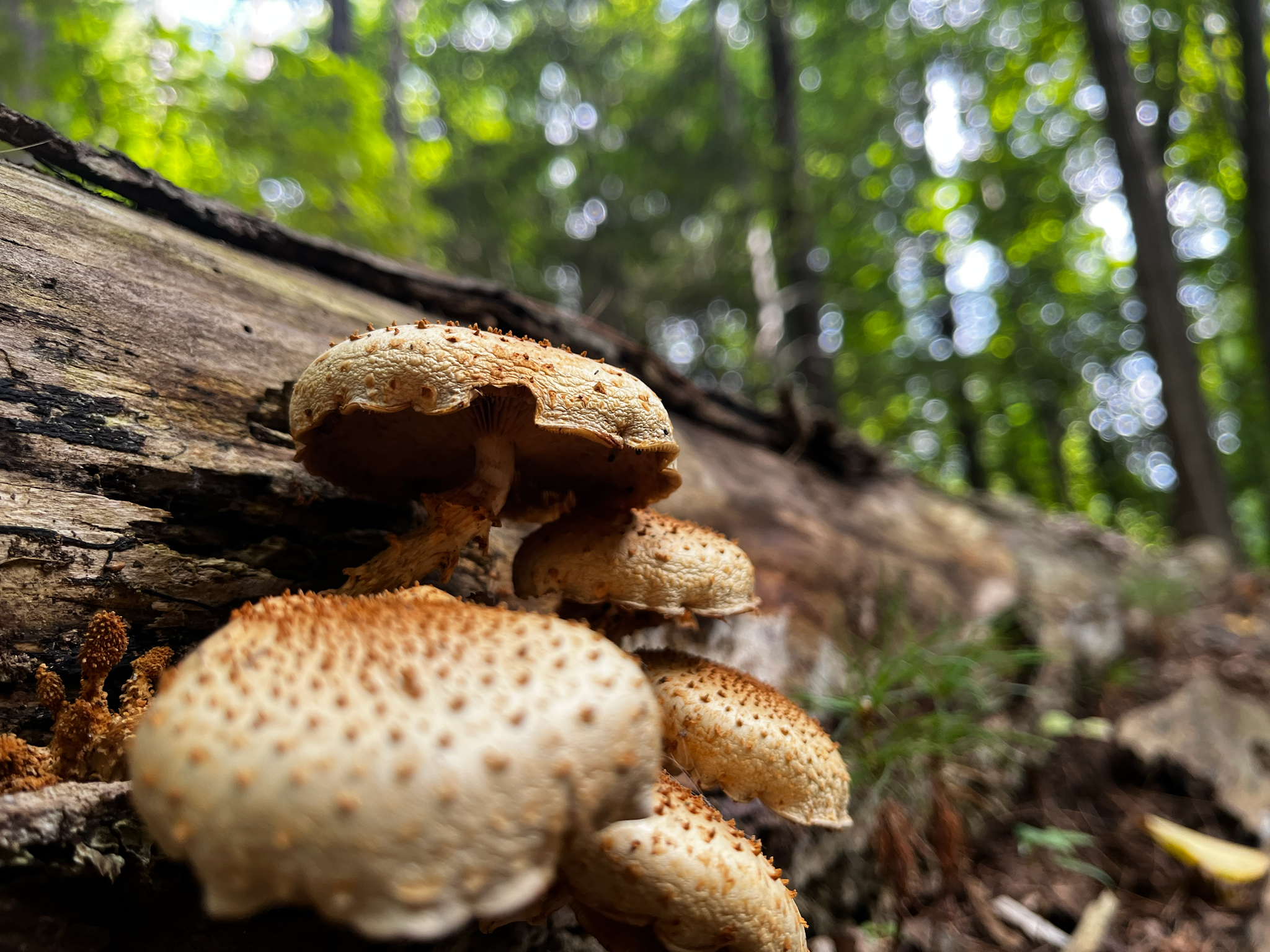
I don’t really like parallax, but I'm doing it here for demonstration purposes, okay? The photo above is 20% taller than its frame. On the frame’s view timeline, it moves by translate from -16.5% to 0, so it scrolls slightly slower than the page.
The photo essay below pins each photo with position: sticky. Each frame overlaps the previous one, so the next photo slides up over the current one. This works in every browser. In browsers that support scroll-driven animations, an @supports block increases the overlap and fades each new photo in. The captions describe each step.
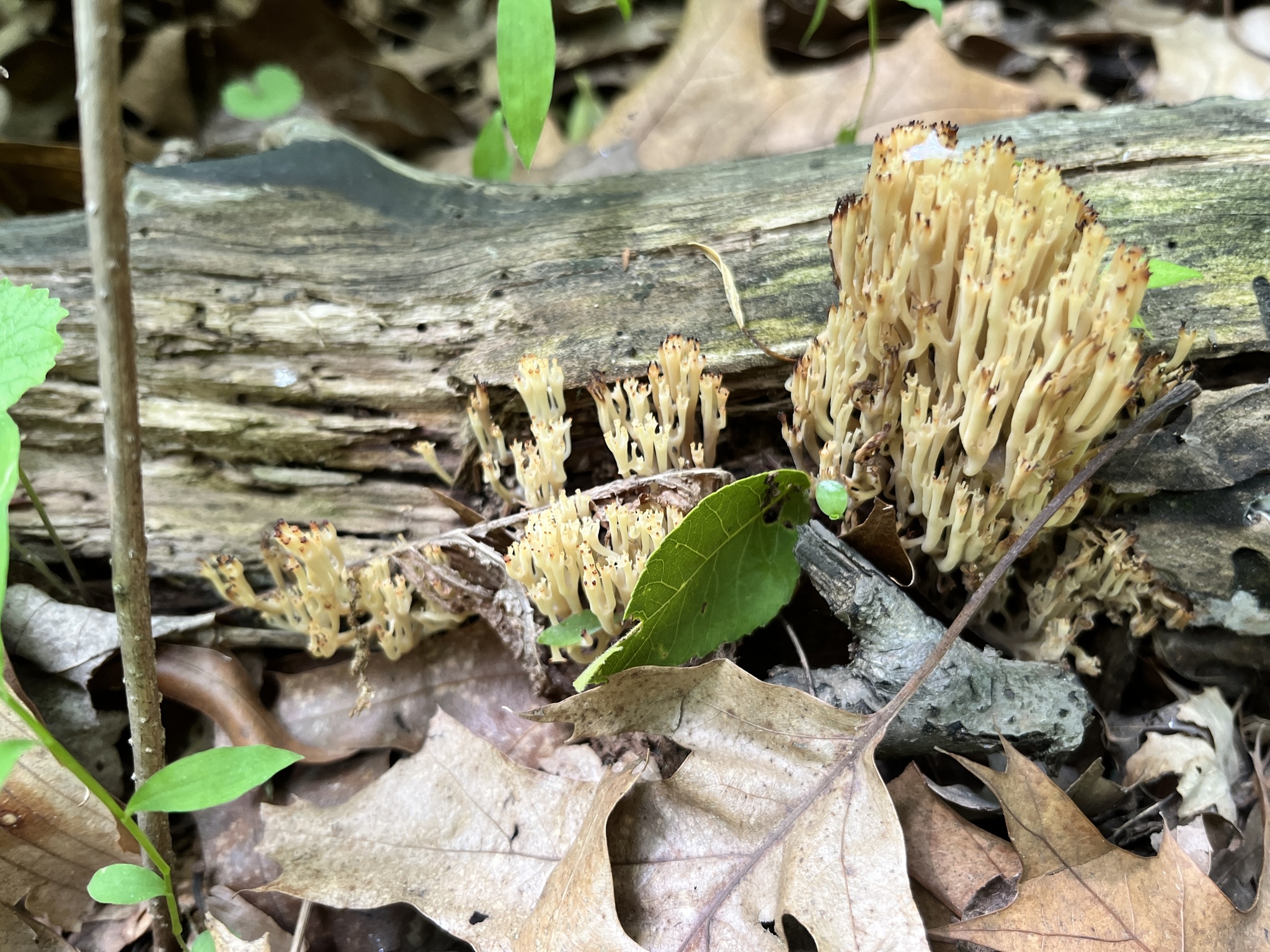
01 — Pin
Each photo lives in a frame three screens tall, and pins to the
top with position: sticky while its frame scrolls
past. Crown-tipped coral fungus, West Orange, NJ, June 2024.
02 — Overlap
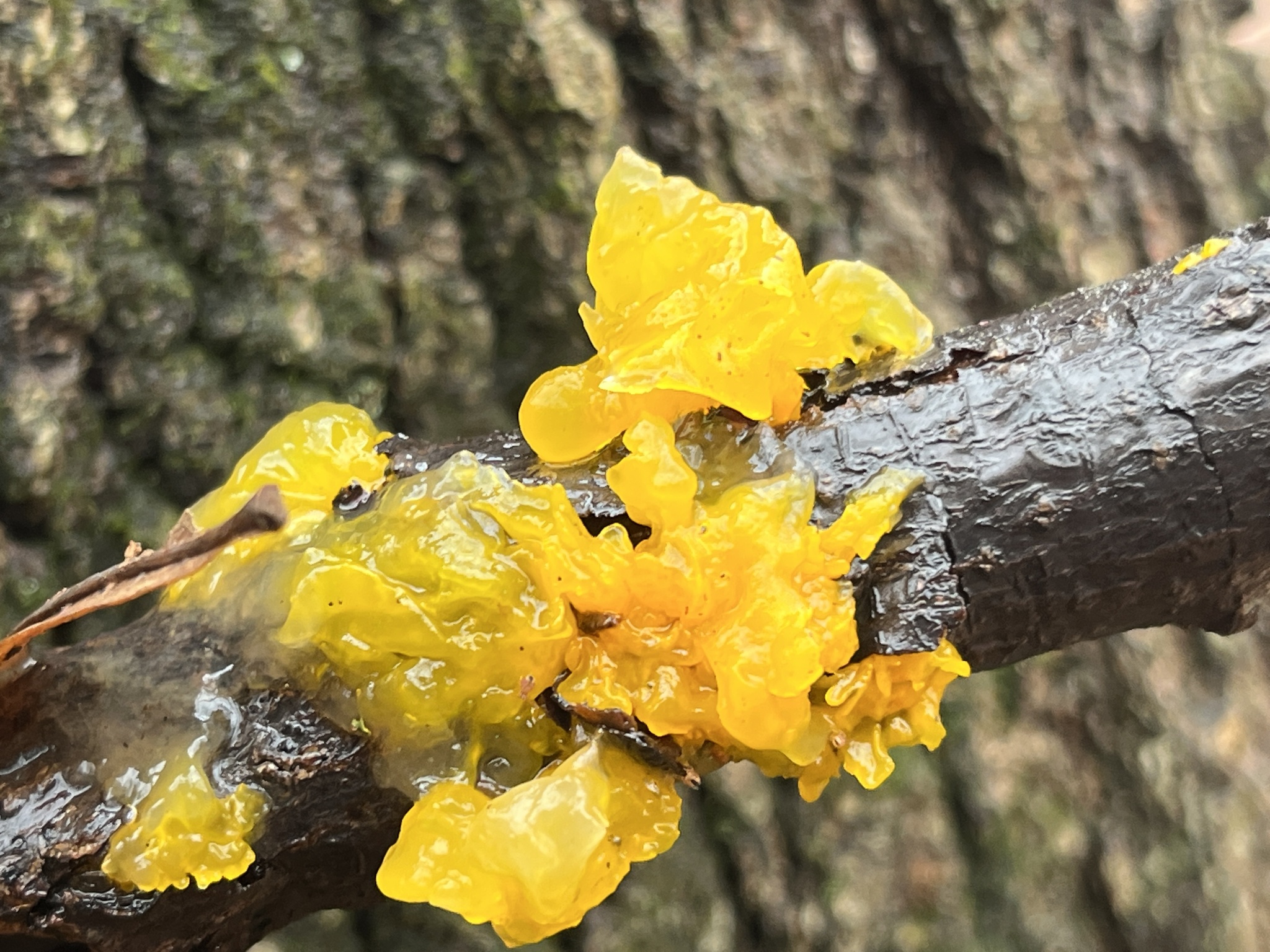
Frames overlap with a negative margin, so the next photo slides up over this one like a curtain while it’s still pinned. Tremella jelly fungus, West Orange, NJ, March 2023.
03 — Fade
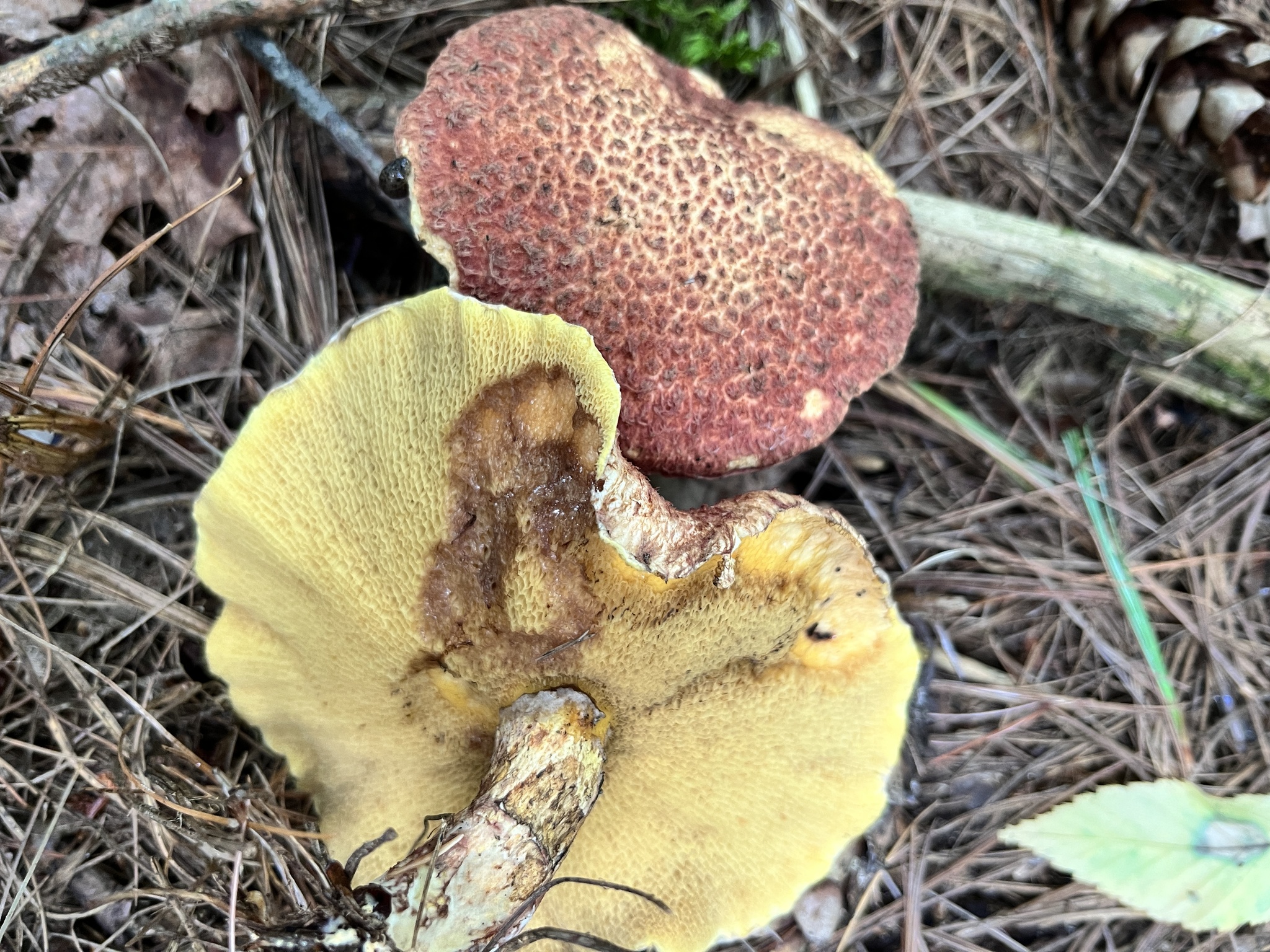
Where animation-timeline: view() is supported, frames
overlap further and each new photo fades in once it’s pinned.
Painted suillus, Gilboa, NY, August 2023.

04 — Let go
This card is frosted glass: backdrop-filter: blur() over
a see-through color-mix(). The last frame is
shorter, so the photo lets go soon after. White coral fungus,
Stamford, NY, August 2023.
Every animation on the page is turned off for users who have enabled reduced motion. Each component ends with a @media (prefers-reduced-motion: reduce) CSF block that removes its animations.
Chapter VII Figures, galleries and tables
Figures sized from an attribute
You can size figures somewhat arbitrarily based on data attributes now. The figure below has data-span="wide" in its HTML and no modifier class. The CSS reads the attribute with typed attr() and passes it to if() CSF, an inline conditional, which chooses the grid column. This is more of a "cool, glad I can do that" thing, but not strictly necessary.

On wide screens, the caption is placed in the rail, aligned to the bottom of the image. The figure uses grid-template-columns: subgrid to take on the page columns, places the image across wide-start / main-end, and places the caption in rail. On narrow screens the caption goes below the image.
.figure {
  --span: attr(data-span type(<custom-ident>), main);
  grid-column: if(
    style(--span: full): full; style(--span: wide): wide; else: main
  );
}

/* The same result for browsers without if() */
@supports not (color: if(else: red)) {
  .figure[data-span="wide"] { grid-column: wide; }
  .figure[data-span="full"] { grid-column: full; }
}
if() checks each condition in order and falls back to else. The @supports test checks whether the browser can parse if().Masonry and lightbox things
The photo grid below is a masonry layout: items of different heights are packed into columns without gaps. It uses display: grid-lanes CSF, with Firefox’s earlier grid-template-rows: masonry syntax as a fallback, and a regular grid for browsers that support neither. Each photo is a button that opens a full-screen <dialog>. Chapter VIII explains how the dialog opens without JavaScript.
.mosaic {
  display: grid;
  grid-template-columns: repeat(2, 1fr);
  gap: 0.75rem;

  @media (width >= 48rem) {
    grid-template-columns: repeat(4, 1fr);
  }
}

/* Without masonry, photos are cropped to fill equal cells */
.mosaic img {
  height: 100%;
  object-fit: cover;
}

/* Firefox's earlier syntax */
@supports (grid-template-rows: masonry) {
  .mosaic { grid-template-rows: masonry; }
  .mosaic img { height: auto; }
}

/* The new standard */
@supports (display: grid-lanes) {
  .mosaic { display: grid-lanes; }
  .mosaic img { height: auto; }
}figures.css. grid-lanes reuses grid-template-columns, so the same two or four columns become lanes, and each photo goes into whichever lane is shortest. With masonry on, photos keep their own heights.In the lightbox, the photo is shown with object-fit: contain CSF so it isn’t cropped. Behind it, a second copy uses object-fit: cover with filter: blur(40px) to fill the rest of the screen.
The comparison table
The table below compares five of the most frequently recorded species in the iNaturalist data. The column headers are sticky, so they stay visible while the table scrolls. On narrow screens the table scrolls horizontally inside its own container, with the row headers pinned on the left. The right edge fades out while there is more content to scroll to. The fade is a scroll-driven animation on a registered --fade-end length, so it disappears when you reach the end.
| Hen of the woodsGrifola frondosa | Destroying angelAmanita bisporigera | Scaly shieldPluteus petasatus | White-pored chickenLaetiporus cincinnatus | Red chanterelleCantharellus cinnabarinus | |
|---|---|---|---|---|---|
| Records | |||||
| ObservationsTotal logged | 8 | 8 | 8 | 7 | 6 |
| Research gradeaConfirmed by the community | 6 | 0 | 4 | 5 | 4 |
| Season | |||||
| First foundMonth and year | Oct2021 | Sep2021 | Jun2022 | Sep2021 | Aug2021 |
| Most recentMonth and year | Sep2026 | Sep2023 | Sep2023 | Jun2026 | Sep2026 |
| Busiest monthMost finds | Oct | Sep | Jun | Jun | Aug/Sep |
| Range | |||||
| TownsbDifferent places found | 4 | 6 | 3 | 4 | 4 |
| StatesUS states | 1 | 3 | 3 | 1 | 2 |
|
|||||
Hovering a row highlights it, and hovering a cell also highlights its column. CSS has no column selector for this, so the table uses :has(): .compare__table:has(td:nth-child(3):hover) matches the table while any cell in the third column is hovered, and then styles every cell in that column. The featured first column has clipped, beveled ends using corner-shape: bevel CSF, mostly for fun. A border-radius sets the size of the cut, and browsers without corner-shape show square corners.
The carousel
So, this is a pure CSS carousel, which is apparently now a thing you can do. The carousel is a horizontally scrolling list with scroll snapping CSF. The browser generates its controls. The dots come from ::scroll-marker-group and ::scroll-marker CSF. The arrows are ::scroll-button(left) CSF and ::scroll-button(right), positioned over the image with anchor positioning, and disabled automatically at each end. Each caption becomes fully opaque when its slide snaps into place, through a scroll-state(snapped: x) CSF container query.
-

Jackson’s slender caesar, Amanita jacksonii. Lanesborough, Massachusetts, July 2026. -
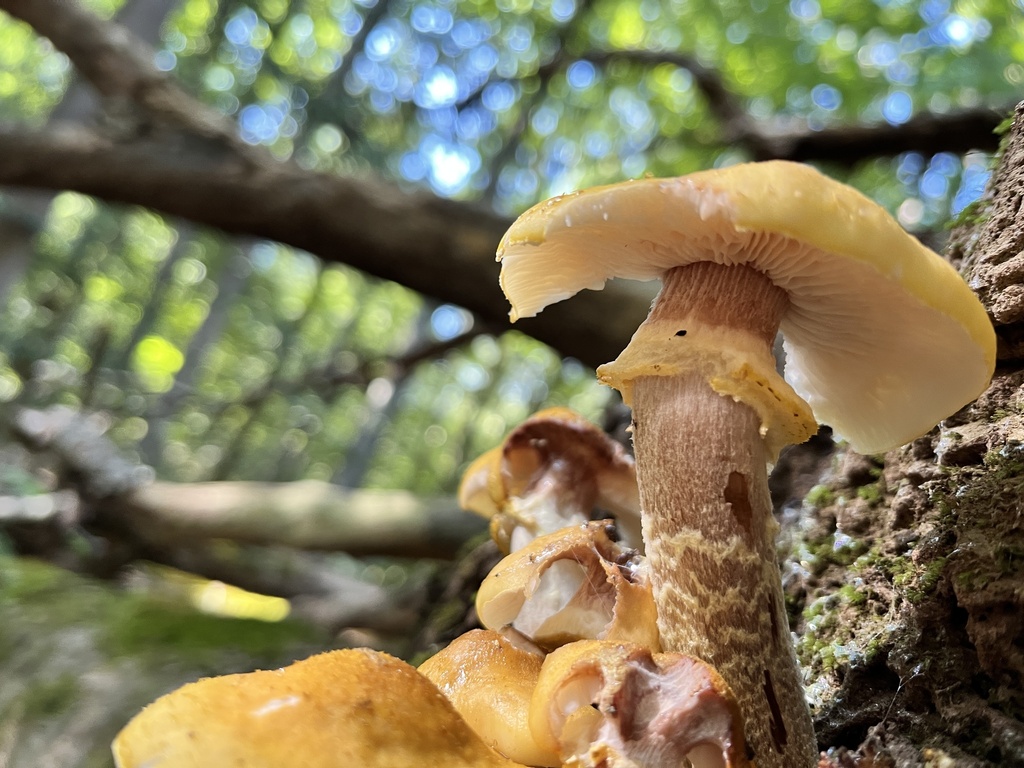
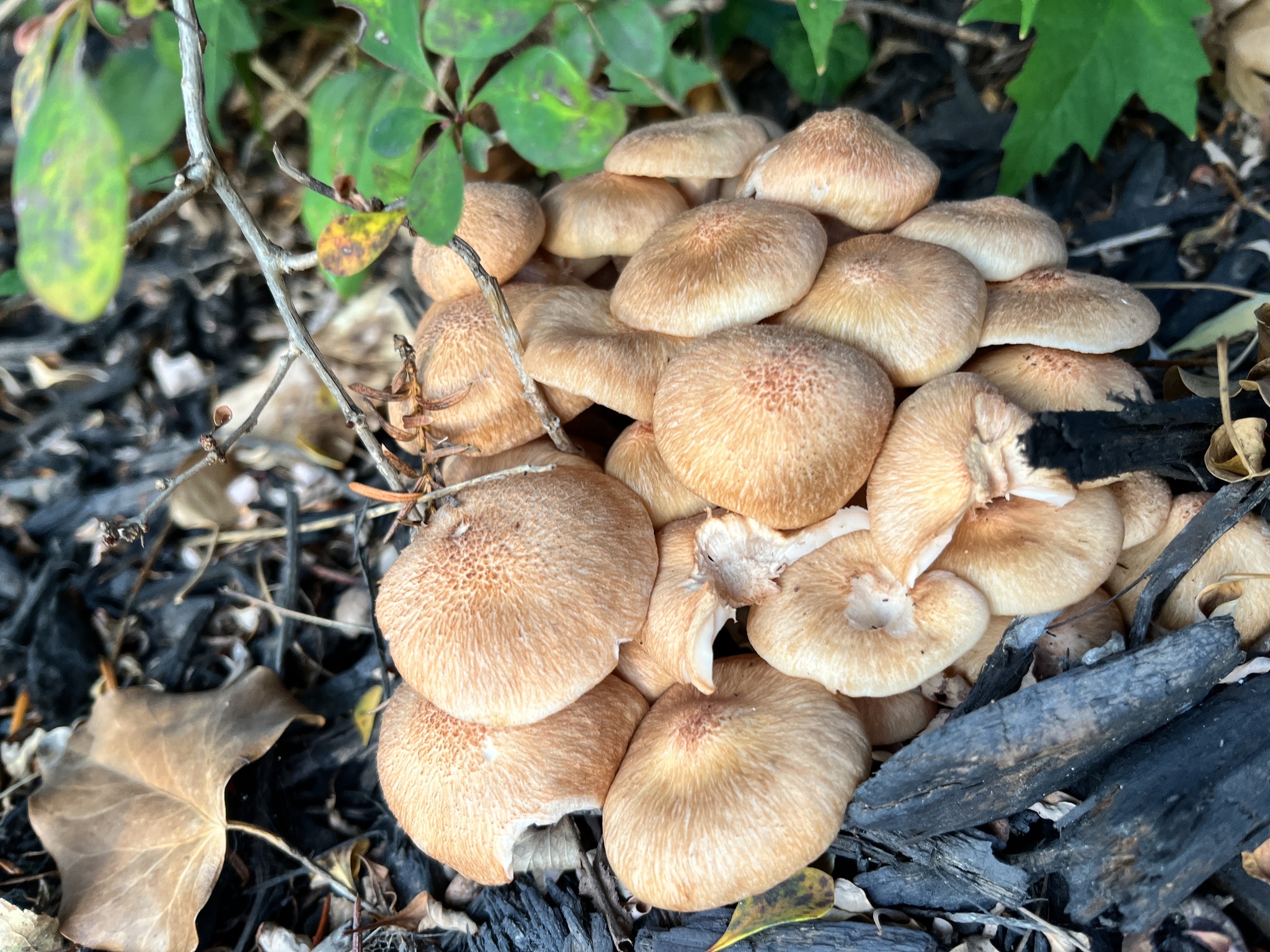
Honey mushrooms, Armillaria, fanning out of a log. South Orange, New Jersey, September 2023. -
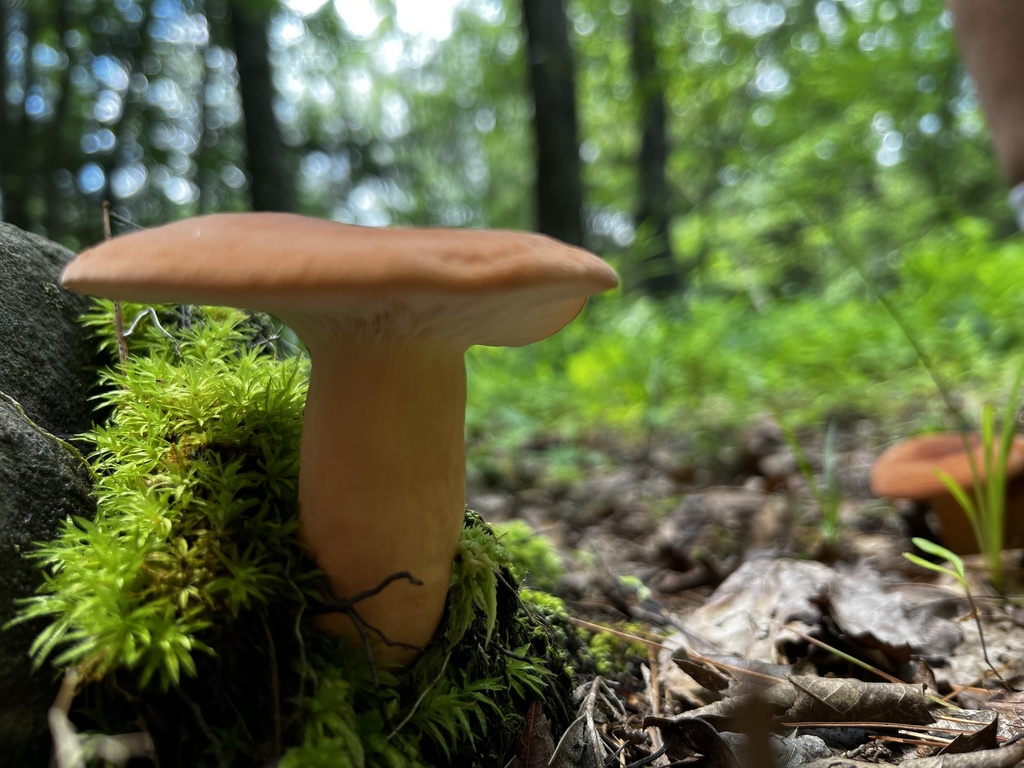
Hygrophorus milkcap, Lactifluus hygrophoroides. Kingston, New York, July 2023.
The carousel sets overflow: auto hidden rather than just overflow-x: auto. Setting only overflow-x makes the browser compute overflow-y as auto as well. The captions are offset by a small translate, which makes the content a few pixels taller than the carousel. The carousel then becomes vertically scrollable and captures mouse-wheel scrolling over it. Setting overflow-y to hidden prevents this.
Chapter VIII Popovers, dialogs and accordions
The menus, tooltips and dialogs on this page are opened and closed by HTML attributes. CSS handles their positioning and animation.
Popovers and anchor positioning
The settings menu is a popover CSF. An element with the popover attribute is opened by a button with a matching popovertarget, and the browser handles opening, closing, the Escape key and clicks outside. CSS positions it with anchor positioning CSF: position-area: block-end span-inline-start places it below the button, aligned to its edge, and position-try-fallbacks: flip-block CSF moves it above the button when there isn’t enough space below. The glossary definitions in Chapter II use popover="hint" CSF with the interestfor attribute CSF, which opens them on hover or focus. CSS sets the delay with interest-delay-start.
Dialogs
The button at the end of this chapter opens a <dialog> using commandfor="…" command="show-modal" CSF. The photo-grid lightboxes work the same way. Animating a dialog has one annoying catch: a closed dialog is display: none, and transitions don’t run from display: none. @starting-style CSF defines the styles the entry transition starts from. allow-discrete CSF on display and overlay keeps the dialog visible and in the top layer until the exit transition finishes. closedby="any" CSF on the dialog lets a click outside it close it, as well as the Escape key.
.modal {
  opacity: 0;
  translate: 0 2rem;
  transition:
    opacity 0.6s var(--ease),
    translate 0.6s var(--ease),
    overlay 0.6s allow-discrete,
    display 0.6s allow-discrete;
}

.modal[open] {
  opacity: 1;
  translate: 0 0;
}

/* Where the entry transition starts */
@starting-style {
  .modal[open] {
    opacity: 0;
    translate: 0 2rem;
  }
}

/* Stop the page scrolling while the dialog is open */
html:has(.modal[open]) {
  overflow: hidden;
}Accordions
The accordion below is three <details> elements with the same name attribute CSF, so only one can be open at a time. Each opens with a height transition. Transitions to height: auto weren’t possible until recently. interpolate-size: allow-keywords CSF on the root element enables transitions to and from auto, and the ::details-content CSF pseudo-element selects the part of the element that expands.
Will this work in my browser?
Mostly, yes. The newest features here, like if(),
@function, display: grid-lanes,
interestfor and the carousel’s scroll buttons, reach some
browsers before others. Each one sits behind an
@supports test or a fallback line, so a browser that
doesn’t understand it gets a plainer version that still works. Check
Can I use for the latest support.
Further reading
- MDN’s CSS reference, documentation for every CSS property and feature.
- Learn CSS on web.dev, a free course from the basics up.
- The Interop dashboard, which tracks cross-browser support for new features.
Where the photos come from
The photos were taken and logged by jsingleton20 (that's me) on iNaturalist in New Jersey, New York, Massachusetts and beyond. The numbers in the chart, table and counter come from the same records.